Say Goodbye to Repeated Formatting! A Complete Guide to Ventoy, the “Ultimate Installation Tool” Even Beginners Can Master
If you’ve ever tried reinstalling a computer system or helping a friend fix theirs, you’ve likely experienced this pain: finding various complex “bootable drive creation tools” (like micro PE or Rufus), having to reformat the USB drive every time you switch systems (e.g., from Windows 10 to Windows 11), enduring a long creation process, and fearing that a wrong setting might break the computer.
Today, we are introducing the open-source marvel, Ventoy, which was born to end these struggles once and for all. Its core magic boils down to one sentence: “Install it just once, and after that, use it like a regular USB drive by simply dragging and dropping system files into it.”
Below is a step-by-step, beginner-friendly “nanny-level” tutorial. We will avoid complex jargon and guide you step-by-step to create your own “universal USB drive.”
🛠️ Preparation (What do you need?)
- A USB Drive: A capacity of 16GB or more is recommended (as modern system files are quite large).
- 🚨 High-Risk Warning: The following operations will erase all data on the USB drive! Please be sure to back up important photos and documents from the USB drive to your computer’s hard drive in advance!
- System Installation Package: This refers to the system files you want to install, typically ending in
.iso(such as Windows installation packages, or Linux systems like Ubuntu). - A computer with normal internet access.
📝 Step 1: Download and Open Ventoy
- Go to Ventoy’s official website or GitHub repository and download the latest version’s compressed archive.
- For Windows systems, please download the file with
windows.zipin its name. - Completely extract the downloaded archive into a folder.
- 💣 Common Mistake 1: Do not double-click to run it directly from within the compressed archive! You must “extract to the current folder” first.
- 💣 Common Mistake 2: After extraction, you will see a main directory and several subfolders (like
altexe,INSTALL, etc.). Please look for the launcher program directly in the main directory. The developers even placed a file namedDO_NOT_RUN_Ventoy2Disk_HERE.txtspecifically in theINSTALLfolder to warn you not to run it in the wrong place.
⚙️ Step 2: “Enchant” the USB Drive with Ventoy (The Most Critical Step)
- Insert your USB drive.
- In the extracted main folder, find the program named
Ventoy2Disk.exeand double-click to open it. - The software interface is very clean. In the “Device” drop-down menu, you absolutely must ensure your USB drive is selected!
- 💣 Fatal Mistake: If your hand slips and you select your computer’s local hard drive, your computer’s data will be instantly wiped clean upon clicking install. Please double-check that you have selected the USB drive by looking at the “Capacity” (e.g., the one showing 32GB or 64GB).
- Once confirmed, click “Install”. The software will pop up two consecutive red warnings telling you that data will be erased; boldly click “Yes”.
- Wait for the progress bar to finish. When the “Ventoy In Device” section on the left displays a version number, it means the installation was successful!
🪄 Step 3: “Throw” the System Files into the USB Drive (Time to Witness the Magic)
- After a successful installation, open “This PC / My Computer,” and you will notice your USB drive’s name has changed to “Ventoy” and it is completely empty inside.
- At this point, it acts just like a regular USB flash drive. You simply need to copy and paste your downloaded system installation packages (
.isofiles) directly into this USB drive. - 💣 Common Mistake 1: Absolutely do not extract the
.isofile! Just copy the entire.isofile into it as you would with music or movies. - 💣 Common Mistake 2: Filename conventions. The system files placed in the USB drive should ideally have purely English or alphanumeric names (e.g.,
win11_2023.iso), and try to avoid Chinese characters or spaces. Chinese names can sometimes cause strange garbled text or “file not found” errors during boot.
🚀 Step 4: Boot the Computer Using the USB Drive
- Plug the universal USB drive you just created into the computer that needs a system reinstall.
- Restart the computer. As soon as the computer turns on and the screen lights up with the first image (usually the computer brand’s logo), frantically press the “Boot Menu Shortcut Key” on your keyboard.
- Note: The key varies across different computer brands, with common ones being F12, F8, F2, or Esc. You can use your phone to search for “your computer brand + USB boot shortcut key”.
- In the pop-up boot menu, select your USB drive’s name (usually containing words like USB, Flash Drive, or Ventoy) and press Enter.
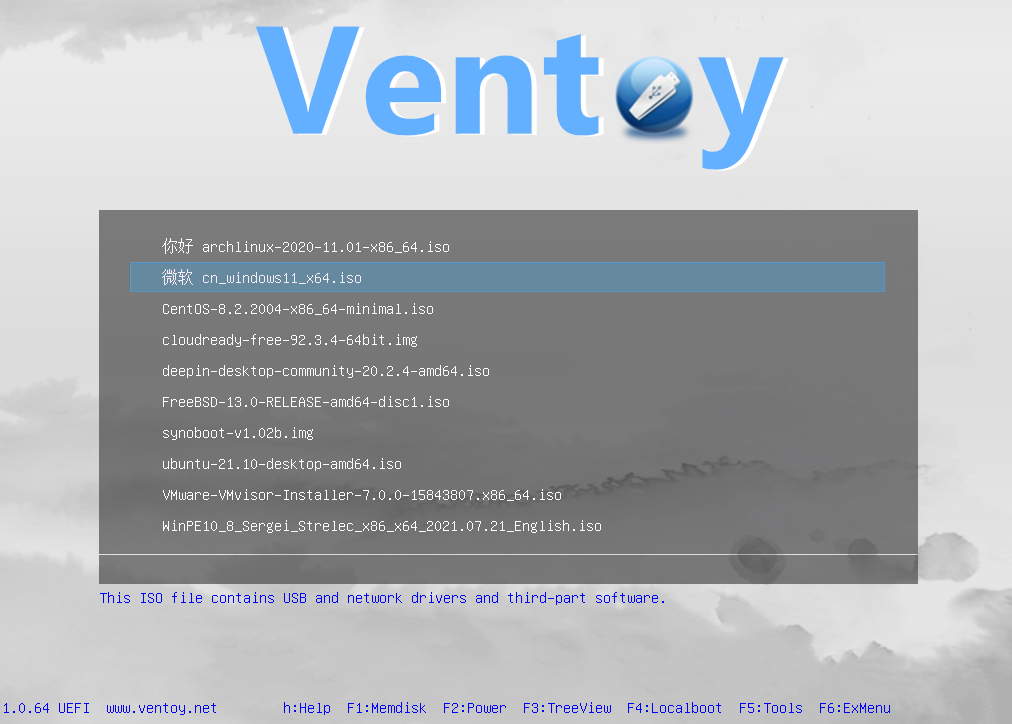
- If successful, you will see Ventoy’s exclusive blue menu interface, neatly listing all the system files you just copied into the USB drive. Use the keyboard’s up and down arrows to select the one you need, press Enter, and you will smoothly enter the familiar system installation screen!
💡 Beginner’s Common Difficulties and Pitfall Avoidance Guide
- Difficulty 1: Encountering the blue and red “Secure Boot” error
- Symptom: Many newer computers have “Secure Boot” enabled by default to prevent viruses. Booting with Ventoy might bring up a blue warning screen (indicating a Security Violation).
- Solution: Don’t panic, the USB drive isn’t broken. You can enter the computer’s BIOS settings and turn off the Secure Boot option (change it to Disabled); alternatively, follow the prompts on the blue screen to “enroll” Ventoy’s certificate into the system (this usually just requires pressing Enter a few times).
- Difficulty 2: Black screen, freezing, or “file corrupted” prompt immediately after pressing Enter
- Symptom: You clearly saw the system name in the menu, but selecting it throws an error.
- Solution: This is 99% likely because, during “Step 3” when copying files, the USB drive was pulled out too early, or the USB drive itself is of poor quality, leading to an incomplete copy of the large file. Please patiently wait for the copy progress bar to completely finish, and be sure to click “Safely Remove Hardware” in the bottom right corner of your computer before unplugging the device.
Once you’ve mastered Ventoy, you’ll never need to scour the internet for tutorials on creating bootable drives again. With just one USB drive, you can store Windows 10, Windows 11, and conveniently toss in a few movies and documents along the way.